Custom Animated Shapes with @Animatable
Animating a custom shape used to mean hand-writing nested AnimatablePair boilerplate. With the @Animatable macro in Xcode 26 you list the properties and the macro writes the rest.
- Serves
- Xcode 26 · the gauge runs on iOS 17+, the glass buttons need iOS 26
- Prep time
- 20 minutes
- Kitchen-tested
- Compiled with Xcode 26.6 · iOS 26.5 simulator · Oct 26, 2026
- Difficulty
- ★★☆
- A custom
Shape - The
@Animatablemacro @AnimatableIgnoredPhaseAnimator(_:trigger:content:animation:)TimelineView(.animation)@Environment(\.accessibilityReduceMotion)
SwiftUI animates a shape by interpolating one value, animatableData, between the old shape and the new one. For a shape with one changing number that’s easy. For a shape with three, you had to pack them into nested AnimatablePairs and unpack them again in a setter, and every new property meant editing that tower of generics. Xcode 26 adds the @Animatable macro, which reads your shape’s stored properties and writes animatableData for you.
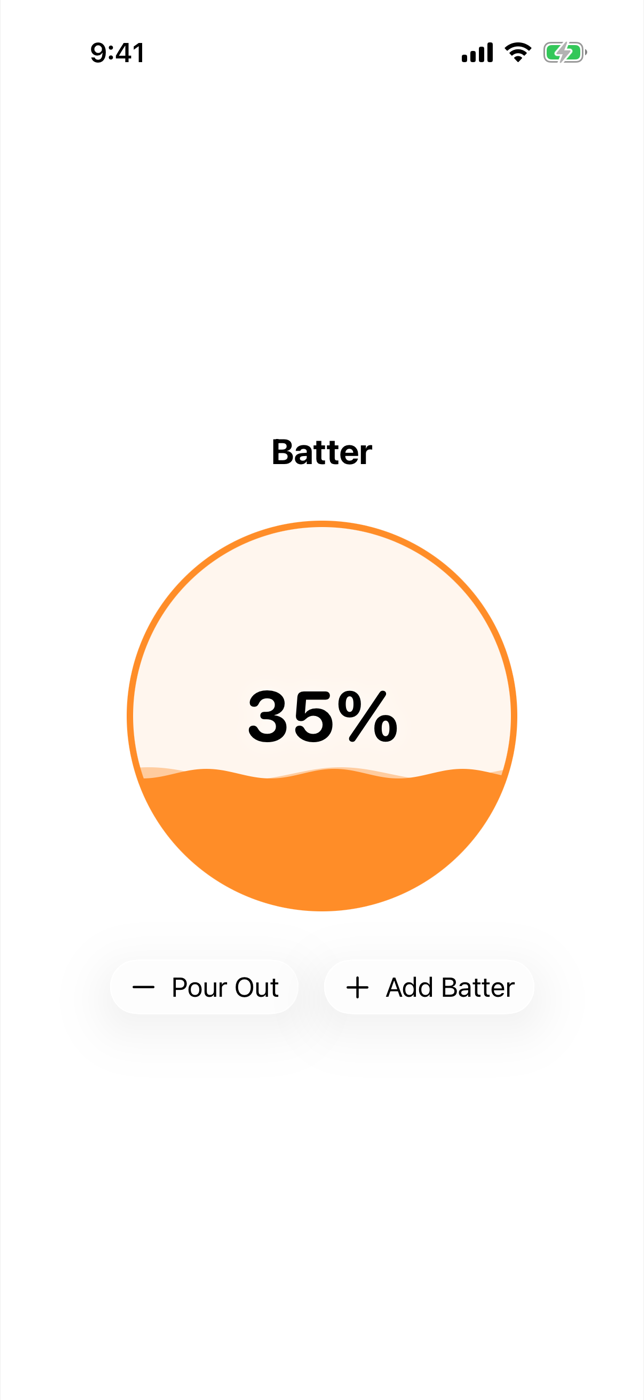
This recipe makes a batter gauge for a baking app: a round bowl whose batter level animates when you add or pour, sloshes on every change, and keeps a gentle ripple moving the rest of the time.
Method
1. Draw the wave
The gauge is built from a wave shape: a sine curve at a given fill level, closed off along the bottom. The drawing code is shared by both versions of the shape below, so it lives in a function. It’s marked nonisolated because Shape.path(in:) is a nonisolated requirement and calls it; more on that in step 3.
1
2
3
4
5
6
7
8
9
10
11
12
13
14
15
16
17
/// A sine-wave water line at `level` (0 = empty, 1 = full), filled to the bottom.
nonisolated func wavePath(
    in rect: CGRect, level: CGFloat, amplitude: CGFloat, phase: CGFloat, crests: Int
) -> Path {
    var path = Path()
    let baseline = rect.maxY - rect.height * level
    let wavelength = rect.width / CGFloat(crests)

    path.move(to: CGPoint(x: rect.minX, y: rect.maxY))
    for x in stride(from: rect.minX, through: rect.maxX, by: 2) {
        let angle = (x - rect.minX) / wavelength * 2 * .pi + phase
        path.addLine(to: CGPoint(x: x, y: baseline + sin(angle) * amplitude))
    }
    path.addLine(to: CGPoint(x: rect.maxX, y: rect.maxY))
    path.closeSubpath()
    return path
}
2. The old way, for comparison
Before the macro, animating both the level and the wave height meant writing animatableData by hand. Two properties need one AnimatablePair; three would need a pair inside a pair.
1
2
3
4
5
6
7
8
9
10
11
12
13
14
15
16
17
18
nonisolated struct WaveWithoutMacro: Shape {
    var level: CGFloat
    var amplitude: CGFloat
    var phase: CGFloat = 0
    var crests = 2

    var animatableData: AnimatablePair<CGFloat, CGFloat> {
        get { AnimatablePair(level, amplitude) }
        set {
            level = newValue.first
            amplitude = newValue.second
        }
    }

    func path(in rect: CGRect) -> Path {
        wavePath(in: rect, level: level, amplitude: amplitude, phase: phase, crests: crests)
    }
}
3. The new way
With @Animatable, the getter and setter disappear. The macro builds animatableData from the stored properties, and @AnimatableIgnored leaves a property out. Here two properties are left out, for different reasons. crests is an Int, which can’t be interpolated smoothly. phase could be, but it’s driven by a clock (step 4), and if it were animatable, every level change would also try to tween the ripple from its old position to its new one.
1
2
3
4
5
6
7
8
9
10
11
@Animatable
nonisolated struct Wave: Shape {
    var level: CGFloat
    var amplitude: CGFloat
    @AnimatableIgnored var phase: CGFloat
    @AnimatableIgnored var crests = 2

    func path(in rect: CGRect) -> Path {
        wavePath(in: rect, level: level, amplitude: amplitude, phase: phase, crests: crests)
    }
}
About that nonisolated. SwiftUI declares Shape as a nonisolated protocol that refines Sendable, with a nonisolated path(in:): shapes are plain values that SwiftUI can ask for a path wherever it’s rendering. A new Xcode 26 project isolates code to the main actor by default, so mark custom shapes nonisolated to match the protocol.
4. Make it slosh and ripple
Three kinds of motion meet in the gauge, and each comes from a different place:
- The ripple runs constantly. A
TimelineView(.animation)redraws every frame and computesphasefrom the clock, which loops seamlessly because the wave repeats every 2π. It pauses when Reduce Motion is on. - The slosh happens on every level change.
PhaseAnimatorsteps asloshvalue through 0, 1, 0.4 and back to 0 wheneverlevelchanges, and the wave’samplitudefollows it. That only animates smoothly becauseamplitudeis part of the macro-generatedanimatableData. - The level itself springs to its new value through an ordinary
.animation(_:value:).
The views keep level as a Double, which Swift converts to the shape’s CGFloat automatically, so the percentage label can use the standard .percent format.
1
2
3
4
5
6
7
8
9
10
11
12
13
14
15
16
17
18
19
20
21
22
23
24
25
26
27
28
29
30
31
32
33
34
35
struct BatterGauge: View {
    var level: Double
    @Environment(\.accessibilityReduceMotion) private var reduceMotion

    var body: some View {
        PhaseAnimator([0, 1, 0.4, 0] as [CGFloat], trigger: level) { slosh in
            TimelineView(.animation(paused: reduceMotion)) { context in
                let seconds = context.date.timeIntervalSinceReferenceDate
                let phase = CGFloat(seconds.truncatingRemainder(dividingBy: 2) * .pi)

                ZStack {
                    Wave(level: level, amplitude: 4 + 12 * slosh, phase: phase)
                        .fill(.orange.opacity(0.4))
                    Wave(level: level, amplitude: 3 + 9 * slosh, phase: phase + .pi, crests: 3)
                        .fill(.orange)
                }
            }
        } animation: { _ in
            .spring(duration: 0.4)
        }
        .animation(.spring(duration: 0.8), value: level)
        .background(.orange.opacity(0.08))
        .clipShape(.circle)
        .overlay {
            Circle().stroke(.orange, lineWidth: 4)
        }
        .overlay {
            Text(level, format: .percent.precision(.fractionLength(0)))
                .font(.system(size: 44, weight: .bold, design: .rounded))
                .monospacedDigit()
                .contentTransition(.numericText(value: level))
                .shadow(color: .white.opacity(0.8), radius: 6)
        }
    }
}
5. Put it on a screen
Two glass buttons change the level in steps of 20 percent:
1
2
3
4
5
6
7
8
9
10
11
12
13
14
15
16
17
18
19
20
21
22
23
struct MixingBowlScreen: View {
    @State private var level = 0.35

    var body: some View {
        VStack(spacing: 32) {
            Text("Batter")
                .font(.title2.bold())

            BatterGauge(level: level)
                .frame(width: 240, height: 240)

            HStack(spacing: 16) {
                Button("Pour Out", systemImage: "minus") {
                    level = max(level - 0.2, 0)
                }
                Button("Add Batter", systemImage: "plus") {
                    level = min(level + 0.2, 1)
                }
            }
            .buttonStyle(.glass)
        }
    }
}
Plating
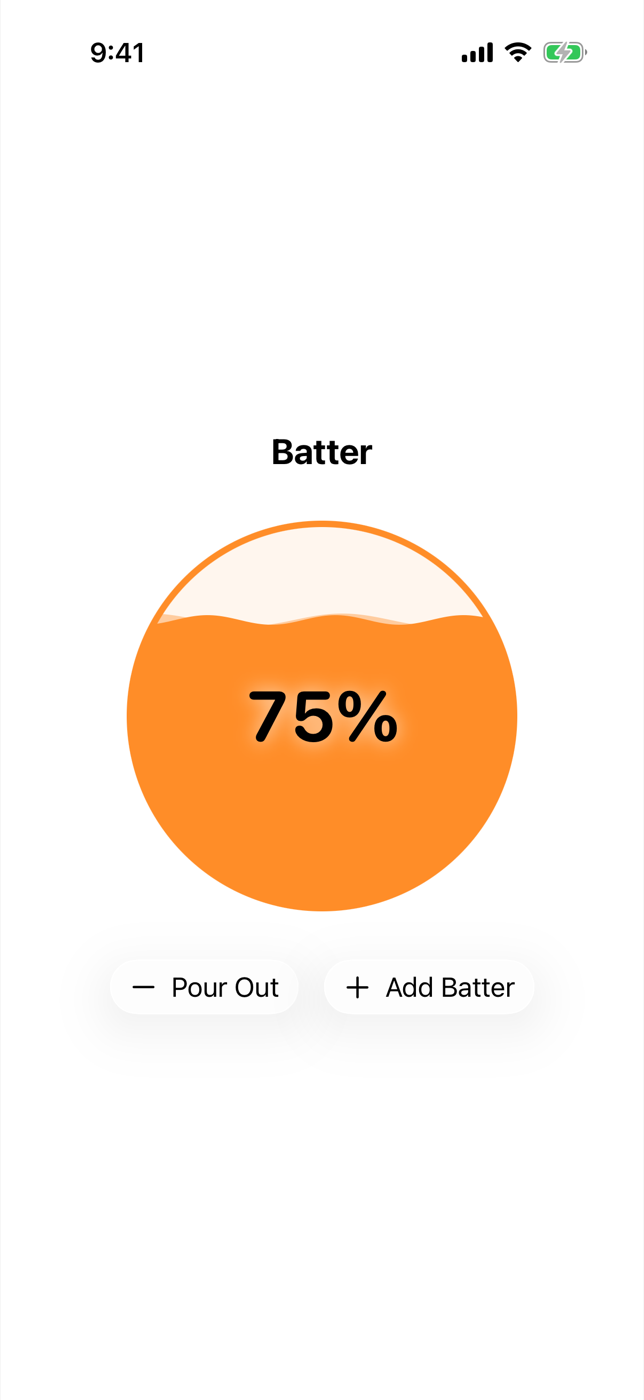
The bowl opens about a third full, with two layers of orange batter rippling slowly against each other. Tap Add Batter and the level springs up while the surface sloshes higher, then settles back to its ripple; the percentage counts up with the numeric text transition. Pour Out does the same in reverse. Turn on Reduce Motion and the ripple stops, while the level changes still animate.
Kitchen notes
- The macro works with stored properties only. Computed properties are skipped, so derive values inside
path(in:)rather than storing them twice. - Use
@AnimatableIgnoredfor anything that shouldn’t be interpolated: counts, flags, enum cases, and values that come from somewhere else, like the clock-drivenphasehere. - If a type already conforms to
Animatable, the macro doesn’t add the conformance again, but it still writesanimatableData.Shapealready conforms, and Apple’s own example of the macro is a shape. - Apple lists the macro as available back to iOS 13. It runs at compile time, so it needs Xcode 26, not iOS 26 on the device. The gauge here needs iOS 17 for
PhaseAnimator, and the glass buttons need iOS 26. - For motion that never stops, a
TimelineViewthat computes values from the date is easier to reason about than arepeatForeveranimation. A repeating animation and a one-off spring on the same shape would both be animating the sameanimatableData, which makes the result hard to predict.
— 30 —
3D Charts: A Surface You Can Spin
Use Chart3D, SurfacePlot and 3D PointMarks in Swift Charts, with a bound Chart3DPose so readers can rotate the chart.
Rich Text Notes Editor
Edit styled text in SwiftUI with TextEditor and AttributedString, then add custom formatting controls that follow the selection.