An In-App Browser, No UIKit Required
WebKit finally speaks SwiftUI. Build a reader browser with a progress bar, back and forward buttons, and a Summarize button that runs JavaScript on the page.
- Serves
- iOS 26+ · iPhone and iPad
- Prep time
- 30 minutes
- Kitchen-tested
- Compiled with Xcode 26.6 · iOS 26.5 simulator · Oct 26, 2026
- Difficulty
- ★★☆
WebView(_:)from WebKit- An
@ObservableWebPage WebPage.load(_:)andbackForwardListtitle,url,isLoading,estimatedProgresscallJavaScript(_:arguments:in:contentWorld:)ToolbarSpacerandShareLink
Showing a web page inside a SwiftUI app used to mean wrapping WKWebView in a UIViewRepresentable, writing a coordinator to forward navigation delegate calls, and pushing KVO updates back into SwiftUI state by hand. iOS 26 replaces all of that with two types from WebKit. WebView is a SwiftUI view. WebPage is an @Observable object holding everything about the loaded page: its title, URL, loading progress and history.
This recipe builds a small reader browser that opens one of this blog’s own recipes, with a progress bar, the page title, back and forward buttons, a share button, and a Summarize button that runs JavaScript on the page to list its sections and estimate the reading time.
Method
1. Import WebKit and describe a summary
WebView and WebPage live in WebKit, so import it alongside SwiftUI. The summary is a plain value the sheet can display:
1
2
3
4
5
6
7
8
9
import SwiftUI
import WebKit

struct PageSummary: Identifiable {
    let id = UUID()
    let title: String
    let minutes: Int
    let headings: [String]
}
2. Put the page on screen
Keep the WebPage in @State and hand it to WebView. Because WebPage is observable, anything you read from it in body, such as title or isLoading, updates the view as the page changes. There’s no delegate to write.
Load the first page from .task. load(_:) returns an async sequence of navigation events that you can iterate to follow each step, but it’s marked @discardableResult, so for a simple browser you can just call it.
1
2
3
4
5
6
7
8
9
10
11
12
13
14
15
16
17
18
19
20
21
22
23
24
25
26
27
28
29
30
31
32
33
34
35
36
37
38
39
40
41
struct RecipeBrowser: View {
    let startURL: URL

    @State private var page = WebPage()
    @State private var summary: PageSummary?

    var body: some View {
        NavigationStack {
            WebView(page)
                .overlay(alignment: .top) {
                    if page.isLoading {
                        ProgressView(value: page.estimatedProgress)
                            .progressViewStyle(.linear)
                    }
                }
                .navigationTitle(page.title.isEmpty ? "Loading…" : page.title)
                .navigationBarTitleDisplayMode(.inline)
                .toolbar {
                    ToolbarItemGroup(placement: .bottomBar) {
                        Button("Back", systemImage: "chevron.backward") { goBack() }
                            .disabled(page.backForwardList.backList.isEmpty)
                        Button("Forward", systemImage: "chevron.forward") { goForward() }
                            .disabled(page.backForwardList.forwardList.isEmpty)
                    }
                    ToolbarSpacer(.flexible, placement: .bottomBar)
                    ToolbarItemGroup(placement: .bottomBar) {
                        Button("Summarize", systemImage: "list.bullet.rectangle") {
                            Task { await summarize() }
                        }
                        ShareLink(item: page.url ?? startURL)
                    }
                }
                .sheet(item: $summary) { summary in
                    SummarySheet(summary: summary)
                }
                .task {
                    page.load(startURL)
                }
        }
    }
}
The progress bar sits over the top of the page only while isLoading is true, and estimatedProgress fills it from 0 to 1. The title comes straight from the page’s <title>.
3. Walk the history
backForwardList mirrors the page’s history: backList holds the pages behind the current one and forwardList the ones ahead, which is all the buttons need to decide whether they’re enabled. Its subscript takes a relative offset, so [-1] is the previous page and [1] the next, and loading an item navigates to it. People can also swipe from the edge to go back and forward, which WebView supports out of the box.
1
2
3
4
5
6
7
8
9
10
11
12
13
extension RecipeBrowser {
    func goBack() {
        if let previous = page.backForwardList[-1] {
            _ = page.load(previous)
        }
    }

    func goForward() {
        if let next = page.backForwardList[1] {
            _ = page.load(next)
        }
    }
}
4. Run JavaScript on the page
callJavaScript takes the body of a JavaScript function, not a complete function, and runs it asynchronously. Whatever the body returns comes back as Swift values: a JavaScript object arrives as a dictionary, an array as an array, and numbers as NSNumber, which casts to Int.
This script collects the text of every h2 and h3 and estimates the reading time at 220 words a minute:
1
2
3
4
5
6
7
8
9
10
11
12
13
14
15
16
17
18
19
20
extension RecipeBrowser {
    func summarize() async {
        let script = """
        const headings = [...document.querySelectorAll('h2, h3')]
            .map(heading => heading.textContent.trim())
            .filter(text => text.length > 0);
        const words = document.body.innerText.split(/\\s+/).length;
        return { headings, minutes: Math.max(1, Math.round(words / 220)) };
        """

        guard let result = try? await page.callJavaScript(script) as? [String: Any] else {
            return
        }
        summary = PageSummary(
            title: page.title,
            minutes: result["minutes"] as? Int ?? 1,
            headings: result["headings"] as? [String] ?? []
        )
    }
}
Note the doubled backslash in \\s: it’s inside a Swift string, so Swift sees \\ and JavaScript receives \s.
5. Show the summary
A sheet with a medium detent keeps the page visible behind it:
1
2
3
4
5
6
7
8
9
10
11
12
13
14
15
16
17
18
19
20
21
struct SummarySheet: View {
    let summary: PageSummary

    var body: some View {
        NavigationStack {
            List {
                Section {
                    Label("\(summary.minutes) min read", systemImage: "clock")
                }
                Section("Sections") {
                    ForEach(Array(summary.headings.enumerated()), id: \.offset) { _, heading in
                        Text(heading)
                    }
                }
            }
            .navigationTitle(summary.title)
            .navigationBarTitleDisplayMode(.inline)
        }
        .presentationDetents([.medium, .large])
    }
}
The headings are listed by position rather than by their text, since a page can repeat a heading.
Plating
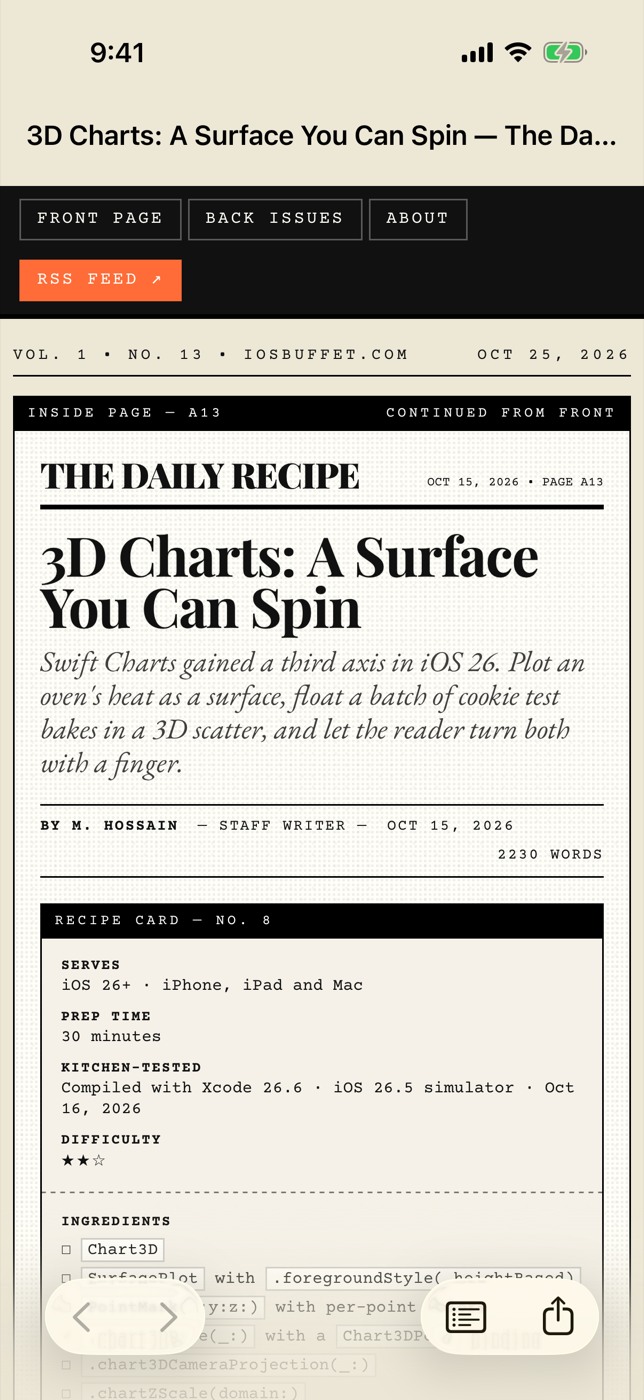
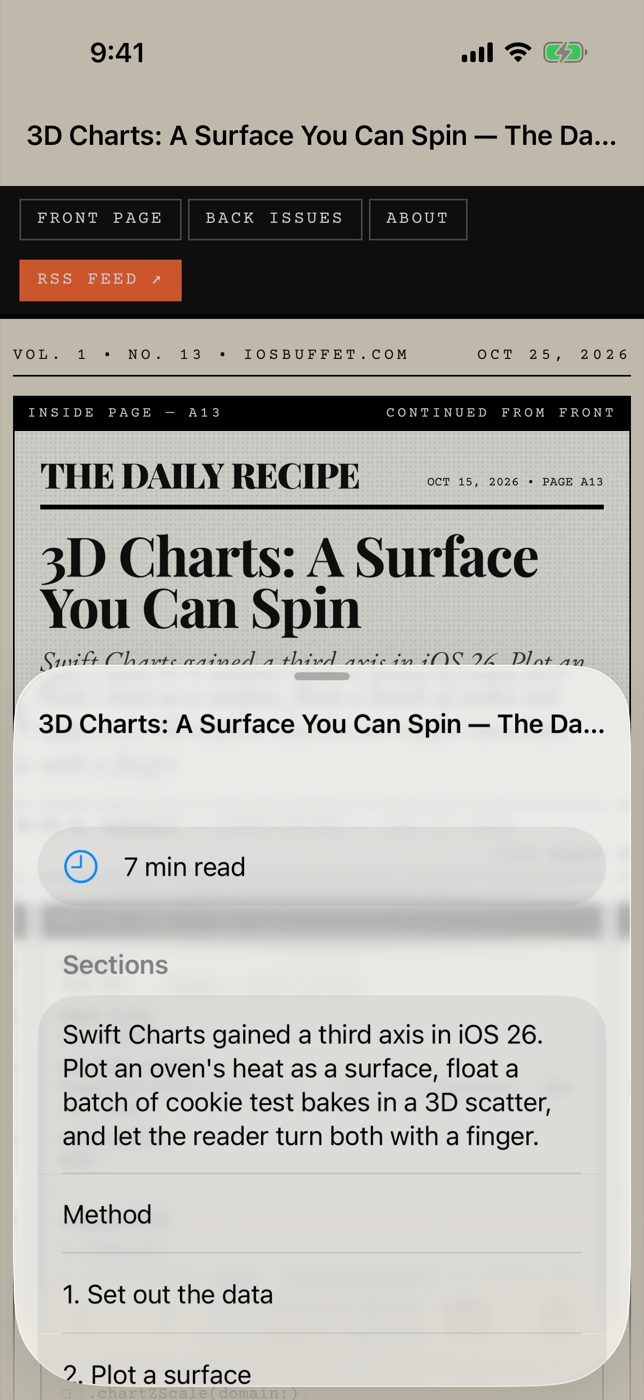
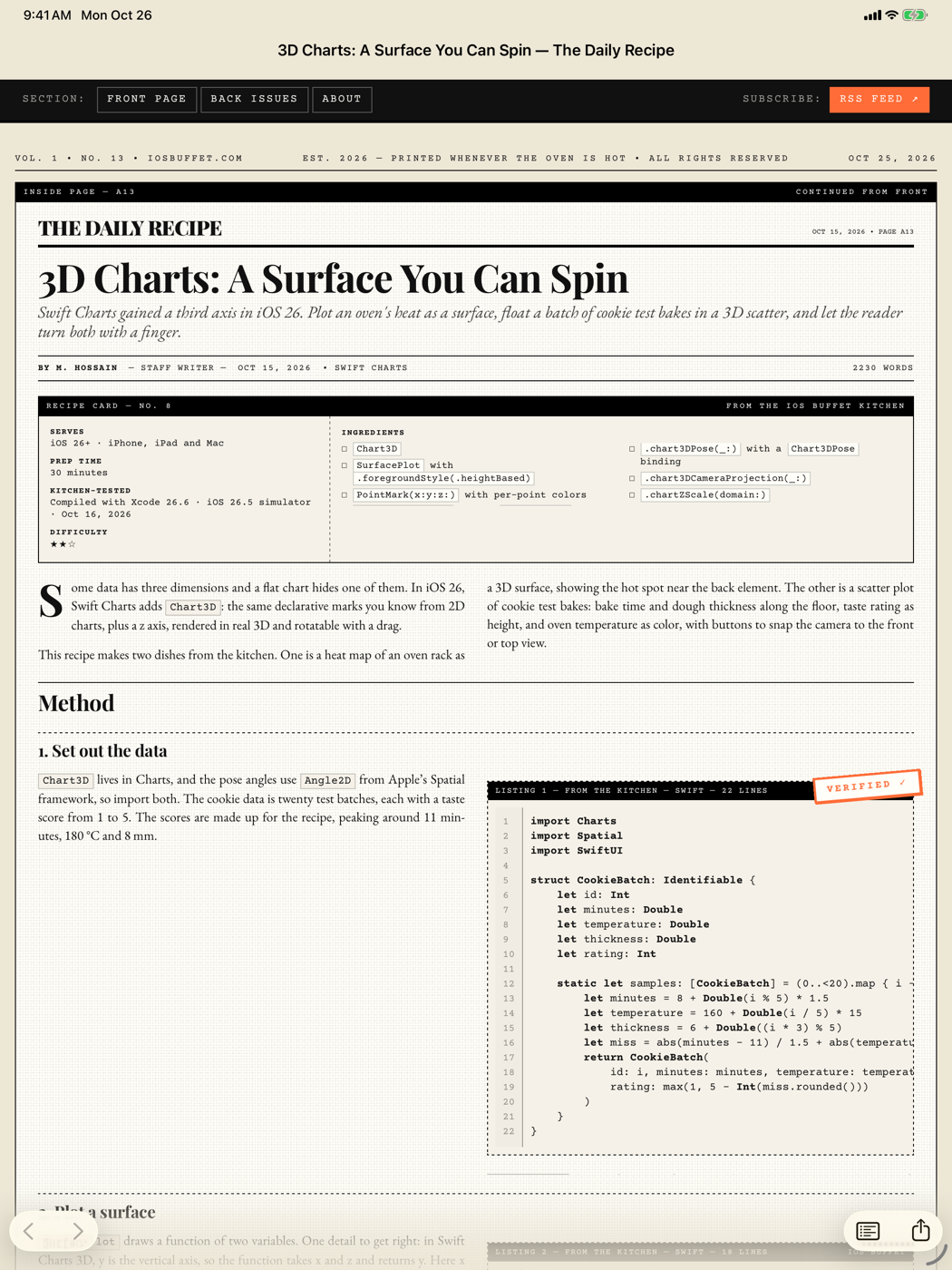
The browser opens on the 3D charts recipe from this blog, with a thin progress bar across the top while it loads and the post’s title in the navigation bar. Back is disabled until you follow a link; tap one and it lights up. Tap Summarize and a sheet slides up halfway, with the reading time and the post’s headings in order. The first one is the post’s subtitle, because this blog’s layout marks up the subtitle as an h2; the script reports the page as it’s really built. After it come Method, the numbered steps, Plating, and Kitchen notes.
Kitchen notes
- For a page you only need to show,
WebView(url:)is enough. Reach forWebPagewhen you need its state, its history, or JavaScript. - If the script’s function body doesn’t return anything,
callJavaScriptreturnsnil; if it explicitly returnsnull, you getNSNull. Cast the result rather than assuming its type. WebPage.Configurationsets up things like private browsing, withwebsiteDataStore = .nonPersistent(), before the page is created.- To decide which links stay in your app and which open in Safari, give the page a navigation decider:
WebPage(configuration:navigationDecider:)takes a type conforming toWebPage.NavigationDeciding. - Set
isInspectabletotruein debug builds and you can inspect the page with Safari’s Web Inspector, just as withWKWebView.
— 30 —