Contacts-Style Alphabet Index
The A–Z scrubber down the side of a long list finally comes built in. Group, label, and let the reader jump straight to the letter they want.
- Serves
- iOS 26+ · iPhone and iPad
- Prep time
- 15 minutes
- Kitchen-tested
- Compiled with Xcode 26.6 · iOS 26.5 simulator · Oct 26, 2026
- Difficulty
- ★☆☆
- A sectioned
List .sectionIndexLabel(_:)on eachSection.listSectionIndexVisibility(_:)Dictionary(grouping:by:).searchable(text:)
For years, the one thing that sent SwiftUI developers back to UITableView was the little column of letters down the right edge of Contacts. Tap “M” and you land on the Ms. SwiftUI never had it, so a long alphabetical list meant a lot of scrolling or a UIKit bridge. In iOS 26 it is a single modifier on each section.
This recipe builds a contacts list with the index, handles names that start with accents or digits, and hides the index while searching.
Method
1. Group the data into sections
The index points at sections, so start by grouping rows under the letter they belong to. Folding diacritics means “Élodie” files under E rather than getting a section of her own, and anything that doesn’t start with a letter goes under “#”, just as it does in Contacts.
1
2
3
4
5
6
7
8
9
10
11
12
13
14
15
16
17
18
19
20
21
22
23
24
25
26
27
28
29
30
31
32
33
34
35
struct Contact: Identifiable {
    let id = UUID()
    let name: String
}

struct ContactSection: Identifiable {
    let letter: String
    let contacts: [Contact]
    var id: String { letter }
}

extension Array where Element == Contact {
    func sectioned() -> [ContactSection] {
        let groups = Dictionary(grouping: self) { contact -> String in
            let first = contact.name.prefix(1)
                .folding(options: [.diacriticInsensitive, .caseInsensitive], locale: .current)
                .uppercased()
            return first.first?.isLetter == true ? first : "#"
        }
        return groups.keys
            .sorted { lhs, rhs in
                if lhs == "#" { return false }
                if rhs == "#" { return true }
                return lhs < rhs
            }
            .map { letter in
                ContactSection(
                    letter: letter,
                    contacts: groups[letter]!.sorted {
                        $0.name.localizedStandardCompare($1.name) == .orderedAscending
                    }
                )
            }
    }
}
2. Label each section
Now the new part. .sectionIndexLabel(_:) goes on the Section itself, and tells the list what to show for it in the index. The label is typically one character long.
1
2
3
4
5
6
7
8
9
10
11
12
13
14
15
16
17
18
19
20
21
22
23
24
25
26
27
28
29
30
struct ContactsView: View {
    let contacts: [Contact]
    @State private var query = ""

    private var sections: [ContactSection] {
        let visible = query.isEmpty
            ? contacts
            : contacts.filter { $0.name.localizedStandardContains(query) }
        return visible.sectioned()
    }

    var body: some View {
        NavigationStack {
            List {
                ForEach(sections) { section in
                    Section(section.letter) {
                        ForEach(section.contacts) { contact in
                            Text(contact.name)
                        }
                    }
                    .sectionIndexLabel(Text(section.letter))
                }
            }
            .listStyle(.plain)
            .listSectionIndexVisibility(query.isEmpty ? .visible : .hidden)
            .navigationTitle("Contacts")
            .searchable(text: $query)
        }
    }
}
The index is visible by default as soon as any section has a label, so .listSectionIndexVisibility is optional. Here it hides the index while the reader is searching, when the results are short and the letters would only get in the way.
3. Keep a full A–Z, even for empty letters
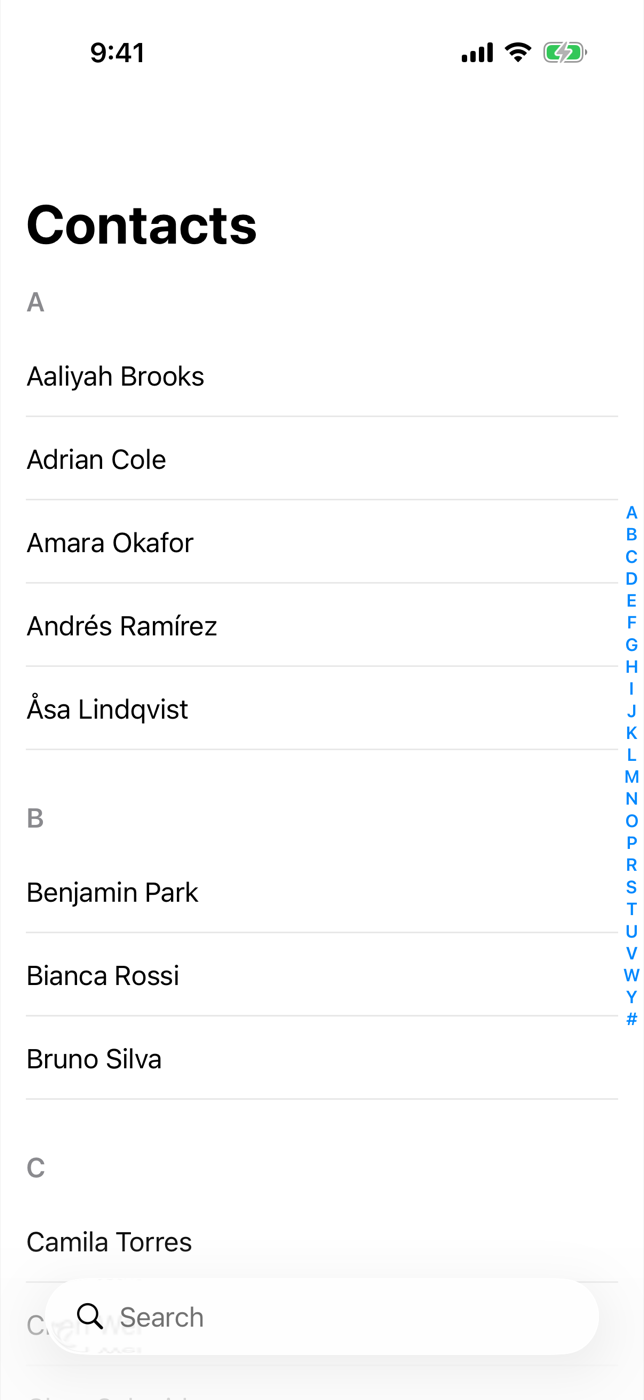
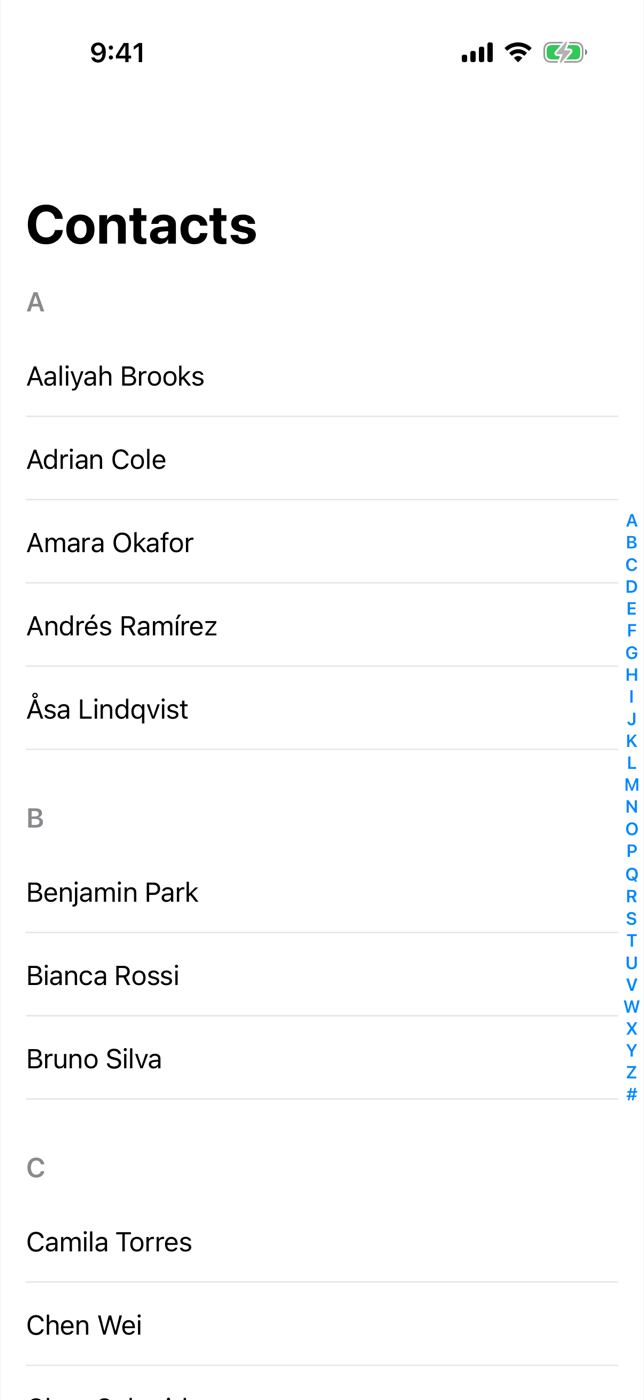
With only a few dozen contacts, the index shows only the letters you have, which makes it jump around in height as data changes. Apple’s documentation describes the fix: give empty sections an index label but no header, and the index keeps its full shape without drawing empty headings in the list.
1
2
3
4
5
6
7
8
9
10
11
12
13
14
15
16
17
18
19
20
21
22
23
24
25
26
27
struct AlphabetIndexFullView: View {
    let contacts: [Contact]
    private let alphabet = "ABCDEFGHIJKLMNOPQRSTUVWXYZ#".map(String.init)

    var body: some View {
        let sections = contacts.sectioned()

        NavigationStack {
            List {
                ForEach(alphabet, id: \.self) { letter in
                    let rows = sections.first { $0.letter == letter }?.contacts ?? []
                    if rows.isEmpty {
                        Section { }
                            .sectionIndexLabel(Text(letter))
                    } else {
                        Section(letter) {
                            ForEach(rows) { Text($0.name) }
                        }
                        .sectionIndexLabel(Text(letter))
                    }
                }
            }
            .listStyle(.plain)
            .navigationTitle("Contacts")
        }
    }
}
Plating
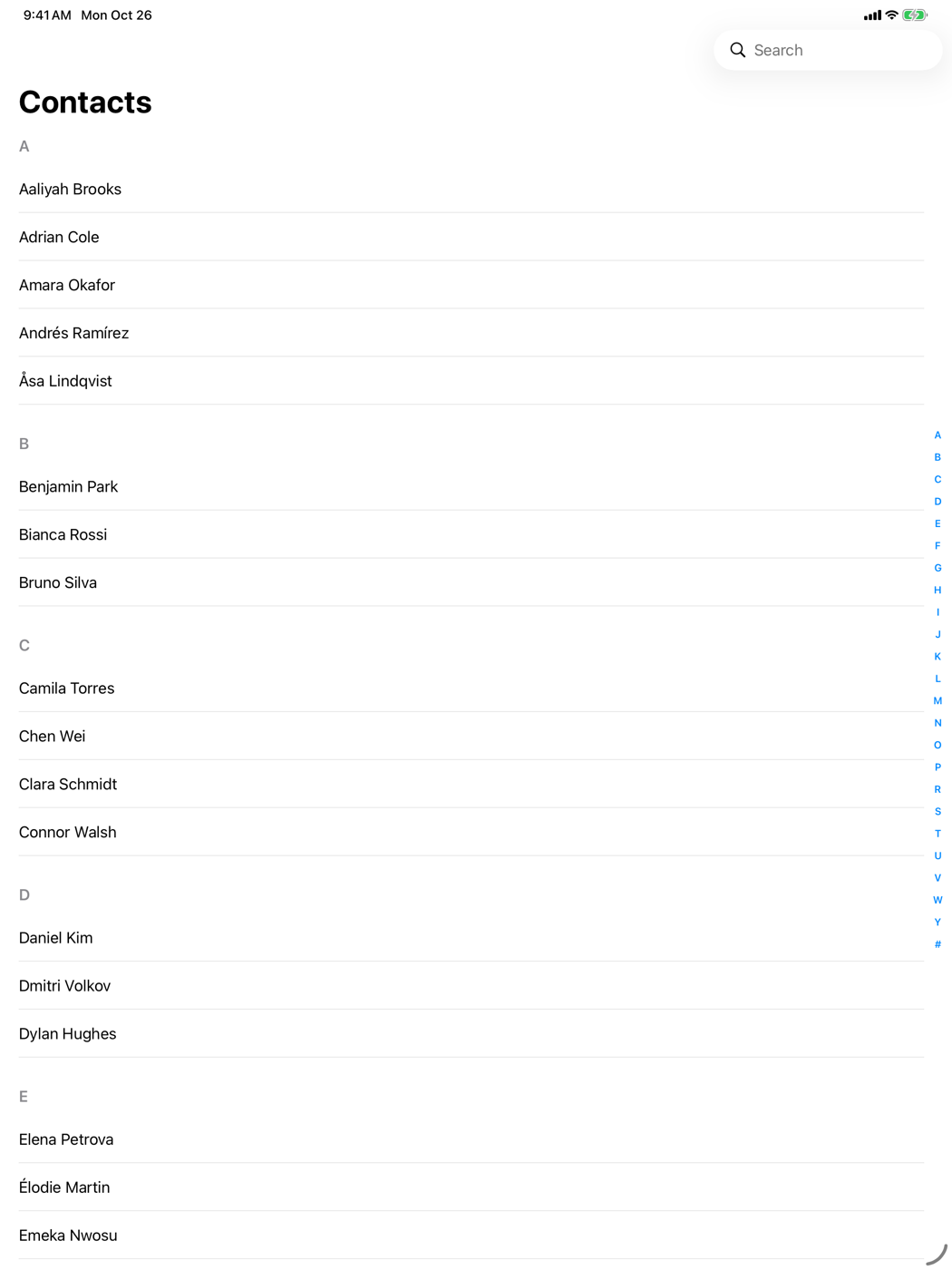
Load a few hundred names and the letters appear, stacked vertically, down the trailing edge of the list. Tap a letter and the list jumps straight to that section. Start typing in the search field and the index steps aside until the query is cleared.
Kitchen notes
- Lists only. The index is a feature of
List. AScrollViewwith aLazyVStackwon’t show it; useScrollViewReaderand your own buttons there. - Leave letters out on purpose. Only sections with a
sectionIndexLabelappear in the index, so a “Favourites” section pinned at the top can stay out of the alphabet simply by not having a label. - Collation isn’t universal. Grouping by first letter suits Latin-script names. For Japanese, Chinese, or mixed-script contacts, group by a locale-appropriate key (reading, pinyin initial) and use that as the label instead.
- Stable identity.
ContactSectionuses its letter as itsid, so sections keep their identity as data changes and SwiftUI animates insertions instead of rebuilding the list.
— 30 —
Edge-to-Edge Hero Header
Let a hero image flow under the toolbar and sidebar with backgroundExtensionEffect, soft scroll edges, and grouped glass toolbar items.
@Observable Cuts SwiftUI Redraws in Half
Swapping ObservableObject for @Observable stopped whole screens re-rendering on every keystroke.